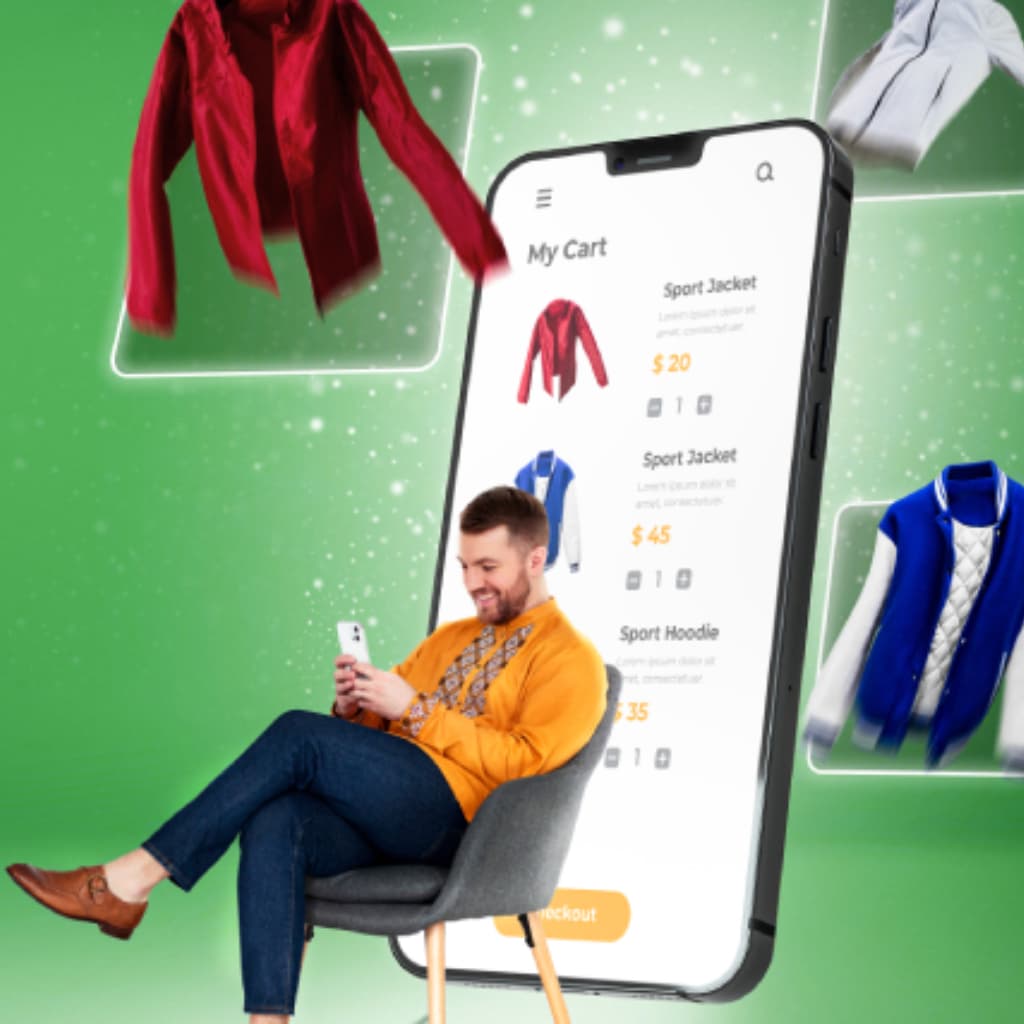
As competition in the world of e-commerce continues to increase, customer communication and engagement have become even more important. In this context, through its Ticimax integration, Pushouse’s WhatsApp integration and sales-boosting modules open up a distinctive and effective communication channel for businesses using the Ticimax e-commerce platform. With Pushouse’s Ticimax integration, you can send a variety of WhatsApp messages to segmented customer groups.

The table below lists the WhatsApp automation modules that work with your Ticimax store and what each one does. After the table we answer the questions to settle before setup: the WS authorization code and its permissions, the webhook setting, the site codes, order statuses, customer consent, choosing a number and message costs.
The Importance of Pushouse WhatsApp Integration
Pushouse WhatsApp integration gives e-commerce websites running on Ticimax the opportunity to communicate with customers directly and personally. This integration makes it possible to send messages tailored to users’ behavior and preferences, making customer engagement more meaningful and effective.
WhatsApp Automation Modules That Work With Ticimax
Once your Ticimax store is connected to Pushouse, you set up and manage the WhatsApp modules below from the same panel. The table sums up what each module does; you will find the details and sample messages on each module’s own page.
| Module | What it does |
|---|---|
| Order Status Updates | Sends the customer a WhatsApp status message at the order stages you choose. |
| Shipment Tracking | Shares shipment updates and the tracking link with the customer on WhatsApp. |
| Abandoned Cart Recovery | Reminds shoppers who left items in the cart and makes it easy to return to them. |
| Back-in-Stock Alerts | Tells shoppers who asked when the product or variant they wanted is back in stock. |
| Welcome Messages | Welcomes new members on WhatsApp, with an optional welcome discount. |
| First-Purchase Incentives | Invites members who have not ordered yet to make their first purchase. |
| Birthday Campaigns | Sends a personal birthday greeting and an offer on the customer’s birthday. |
| Purchase Anniversary Campaigns | Sends a personal message and an offer on the anniversary of the first purchase. |
| Reorder Reminders | Invites customers to reorder when a regularly used product is due for replacement. |
| Post-Purchase Surveys & Reviews | Asks for feedback on WhatsApp after delivery; the reviews you select appear on your store. |
| Win-back Messages | Reconnects with customers who have not purchased for a while. |
| AI Customer Segmentation | Builds campaign-ready customer groups from purchase history. |
| WhatsApp Campaigns | Plans and sends personalized campaign messages to the customer lists you choose. |
| WhatsApp Flow Automation | Greets customers who write to you with automated flows and hands over to your team when needed. |
| Spin-to-Win | Collects visitor contact details with an on-site prize wheel and delivers the discount won. |
| Lead Capture Pop-ups | Collects visitor contact details with targeted display rules. |
When deciding where to start, think about the moment your store loses the most customers: if many carts are abandoned, start with cart reminders; if products sell out often, back-in-stock alerts come first; if your support line is busy with order questions, order and shipping notifications lead. For more ideas on growing a Ticimax store, see our article on increasing sales on Ticimax.
What to Check Before the Integration
The questions below cover the settings to make in the Ticimax admin, customer consent and template preparation. Going through the answers with your team before the setup day makes it clear who will handle which setting.
What details do I need to connect my Ticimax store?
The Ticimax screen in Pushouse asks for three things: your store’s domain (without https://, for example yourstore.com), the WhatsApp number customers will write to, and a WS authorization code you create in Ticimax. In the Ticimax admin, open Ayarlar → WS Yetki Kodu Yönetimi (Settings → WS authorization code management), add a record with “Yeni Ekle” (Add new), enter Pushouse as its description, generate the code with “Yetki Kodu Oluştur” (Generate authorization code) and set it to active. Paste this code into the field, not your store login password.
The same screen also asks for the live page addresses of your commercial electronic message (ETK) consent form and your KVKK privacy notice. If your site does not have these pages yet, prepare them before you start; keep the business number you will connect to WhatsApp and your Meta account at hand on the setup day too.
Which permissions should the WS authorization code have?
For order notifications to work, turn on the “Sipariş Listele” (list orders) and “Sipariş Düzenle” (edit orders) permissions on the code. If you will use discount codes in the spin-to-win wheel, the welcome message or cart reminders, also give the code permission to create gift vouchers; the “Kupon bağlantısını test et” (test the coupon connection) button on the Ticimax screen checks whether this permission is on. If you are not sure which service to enable, ask Ticimax support.
If the code later becomes invalid or the order permission is switched off, Pushouse cannot read your orders; you then receive an email and a warning appears in the panel. Create a new code with the permissions on in Ticimax and enter it on the Ticimax screen in Pushouse.
Do I need to set up a webhook in Ticimax?
Yes. Order status notifications and the welcome message work when Ticimax passes order and membership events to Pushouse. In the Ticimax admin, open the Ayarlar → Genel Ayarlar → Site Yönetim Araçları (Settings → General settings → Site management tools) tab and switch “Webhook Aktif” (webhook active) on.
The “Webhook kurulumunu göster” (show webhook setup) button on the order steps screen in Pushouse walks you through these steps with screenshots. While the switch is off, no WhatsApp message goes to the customer even when the order status changes; check it with a test order after setup.
Do I need to add code to my site?
Yes, two codes. In the “Script kurulumu” (Script installation) section of the Ticimax screen in Pushouse, copy the all-pages header code into Modüller → Script Yönetimi → Tüm Sayfalar - Header Alanı (Modules → Script management → All pages, header area) in Ticimax, and the cart code into Sepet Sayfası (Sepet İçine), the cart page area, then save. The codes go into the Script management areas, not into the theme.
The back-in-stock button on product pages, the spin-to-win wheel, the pop-ups and cart reminders for guest shoppers run on these codes. If you cannot see the Script management menu, ask your store administrator or Ticimax support.
At which order statuses can I send messages?
You choose any of these steps: order created, awaiting payment, approved, in procurement, being packed, shipped, delivered and cancelled, and you edit the text of each step separately. A customer who pays by bank transfer sees your bank details in the awaiting payment message.
The message goes out when the order status changes in the Ticimax admin; if your team does not update the status, the customer is not told either. You can see how the steps work on the WhatsApp order status updates page.
Why does the consent box on my sign-up form matter?
Cart reminders, first-purchase messages and welcome messages sent as marketing only go to members whose Ticimax record has commercial message consent switched on. Make sure the consent box on your sign-up form is not ticked in advance and that customers tick it themselves. Also state in your KVKK privacy notice that phone numbers are shared with a service provider for WhatsApp messages.
If you send the welcome message as a “Üyelik işlemi bildirimi” (membership notice) without any promotion, this consent is not checked, but a gift voucher cannot be added in that mode. A customer who wants to stop campaign and reminder messages taps the “Tanıtımları Durdur” (stop promotions) button in the message; one-word replies such as “STOP” do not count as opting out.
Are guest shoppers’ carts reminded too?
Yes. If a guest leaves their number and consent in the pop-up Pushouse shows on your site, their cart is reminded; the pop-up and cart tracking run on the two codes you added to your site. You can read how the reminder works and see sample messages on the WhatsApp abandoned cart recovery page.
The pop-up form has no separate box for WhatsApp: the commercial electronic message (ETK) box, ticked together with the KVKK consent, covers SMS and WhatsApp consent at once.
How do I make sure back-in-stock alerts reach the right person?
When a product sells out, the customer uses the button on its page to pick the size or colour they want and leaves their number and consent; the alert goes out only when that variant is back in stock. Set up sizes and colours as separate variants in Ticimax and keep stock quantities up to date at variant level. The button appears through the code you added to the header area.
When you put a product back on sale, enter the quantity that is actually on the shelf. An alert also goes out for a size that shows as in stock but is not in the warehouse; the customer then places an order you cannot fulfil, and the reminder costs you the trust it was meant to build.
Where does the tracking link in the shipping message come from?
If Ticimax provides a tracking link for the order, the message uses it. If not, you define your own tracking address for your carrier in the Shipment Tracking settings in Pushouse, and the tracking number is added to that address in the message. Entering the tracking number on the order without delay keeps the message on time.
If you have also turned on the “shipped” step in order status notifications, run a test order through your shipping process and count how many messages tell you the parcel has left. For most stores it is simpler to keep the message that carries the tracking link than to give the customer the same news twice.
Can I use my existing WhatsApp number?
Yes. Your number is connected to the WhatsApp Business Platform through Meta’s official setup screen; if it is used in the WhatsApp Business app on your phone, it keeps working in the app too. To connect a number that is active on a personal WhatsApp account, that account must be deleted first; a separate line for the store is usually easier.
In the free WhatsApp Business app you run conversations yourself from the phone. On a number connected to the platform, messages go out on their own based on cart, order and stock events, and every message the store starts is sent with a template approved by Meta.
How should I plan message costs?
Every message sent is deducted from your message credits in Pushouse; credits are charged separately from the module subscription. When planning the budget, work out the module fee and the number of messages you expect separately.
Estimate the number of messages flow by flow. For order notifications, the steps you turn on set the count: with four steps on, an order that goes through all of them costs four messages. A shipping message is a single message per order; the volume of cart reminders depends on the carts left by consenting customers, and that of back-in-stock alerts on the number of people who asked to be notified.
How long does setup take?
Three things set the timeline: the preparation on the Ticimax side (the WS authorization code and its permissions, the “Webhook Aktif” switch, the two site codes), connecting the number through Meta’s setup window and getting the templates approved by Meta. The first two depend on your preparation, while Meta grants template approval; before switching the flows on for customers, place a test order with your own number and see every message on your phone.
If you would like to plan the setup with our team or discuss which module to start with, you can book a demo call with the “Book a Meeting” button in the menu. If you prefer to write, fill in the contact form at the bottom of the page and our team will get back to you.